
Lenovo laptop won’t turn on at all and shows no lights: what to check
5 November 2026 · Lenovo news
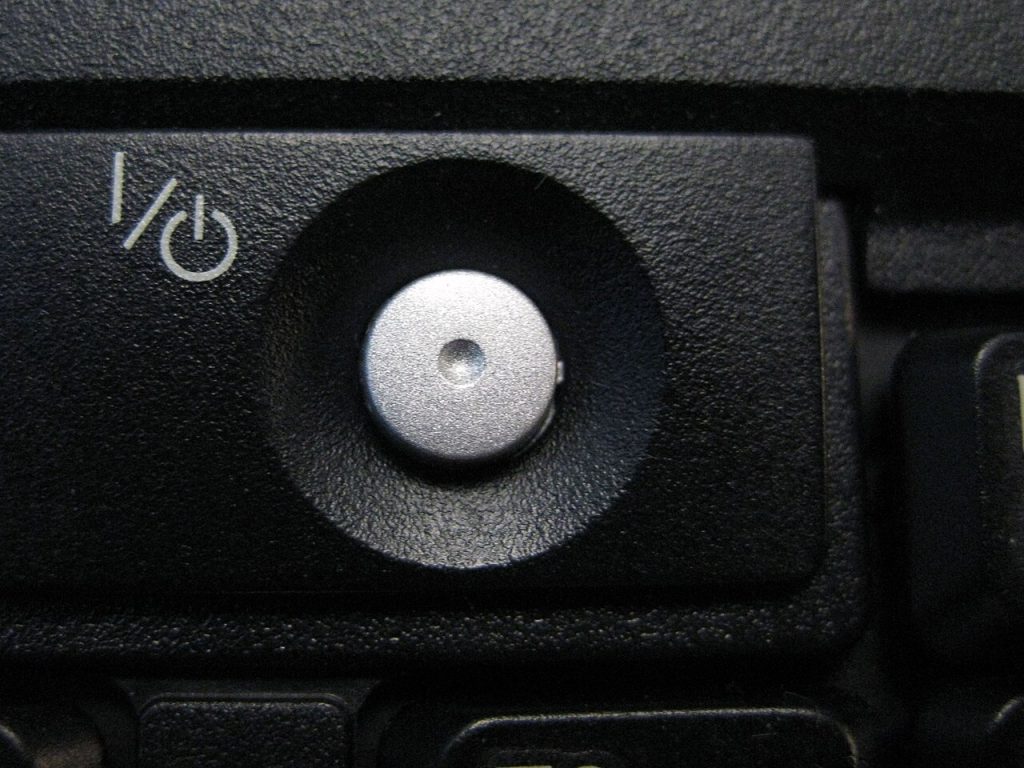

You press the power button on your Lenovo laptop and nothing happens. There is no power light, no charging light, no fan and no sound. A completely dead laptop looks alarming, but the cause is not always serious. It can be as simple as a failed charger or a laptop that needs a power reset. Here is how to work through the safe checks, and how to tell when it needs a repair.
First, is it really dead?
A laptop with no lights at all is a different problem from one that powers on but shows nothing on the screen, so it is worth being sure which one you have.
- Listen for the fan. Put your ear near the vents and press the power button.
- Look at the power button and the side of the laptop. Many models have a small light in the button or next to the charging socket. On many ThinkPads the dot on the lid logo lights up too.
- Press Caps Lock. If the key has a light and it comes on, the laptop is running and the fault is more likely to be with the display.
If you get any of these signs of life, read our guide to a black or flickering screen instead. If the laptop reaches the Lenovo logo and stops there, see stuck on the Lenovo logo.
Check the power supply
The charger is the easiest thing to rule out.
- Try a different wall socket. Plug the charger straight into the wall rather than an extension lead.
- Check both halves of the charger. Most chargers have a mains lead that plugs into a power brick. Push it in firmly at both ends.
- Inspect the cable. Look for fraying, kinks or a damaged plug, especially where the cable meets the brick and the connector. Stop using a charger that is damaged.
- Try another suitable charger. Use one with the right connector and at least the same wattage. A low-power phone charger may not be enough to start a USB-C laptop.
- On USB-C models, try another port. If your laptop has more than one USB-C port, not all of them may accept charging. Look for a small charging symbol beside the port.
- Give it time. A fully flat battery may not respond straight away, so leave the laptop on charge for at least half an hour before trying again.
Our guide to a laptop that is plugged in but not charging has more on charger and battery faults.
Try a power reset
Sometimes a laptop stops responding because its power controller has locked up. A reset clears that, and it will not erase your files.
- Unplug the charger and remove everything else connected, including USB drives, docks, memory cards and external displays.
- If your laptop has a removable battery, take it out. Leave a built-in battery alone.
- Press and hold the power button for about 30 seconds, then let go.
- Refit the battery if you removed it, connect the charger and press the power button as normal.
Some Lenovo laptops also have a small emergency reset hole on the underside, which is common on ThinkPads. It is pressed with a straightened paper clip while the charger is unplugged. Not every model has one, so check the user guide for your exact model to see where it is and how to use it.
Try the Novo button on IdeaPad and Yoga models
Many IdeaPad and Yoga laptops have a Novo button, a tiny button or pinhole on the side of the laptop, marked with a small curved arrow. Pressing it with the laptop off should open a recovery menu. If that menu appears when the normal power button does nothing, the laptop has power and the problem may be the power button itself.
When to stop trying
Do not keep charging or pressing the power button if any of these apply:
- Liquid has been spilled on it. Applying power can make the damage worse, so follow our advice on a spilled drink.
- The case is bulging or the trackpad has lifted. This can mean a swollen battery. Unplug it and read our guide to battery swelling.
- You can smell burning. Unplug the laptop and do not use it again until it has been checked.
Signs it needs a repair
- It stays dead with a known good charger, even after a power reset.
- The charging connector feels loose, or the laptop only responds when you hold the plug at an angle.
- The charger’s light goes out when you plug it into the laptop, which can point to a short circuit inside.
What the repair involves
We start by testing the charger, the battery and the charging port separately, then measure the power coming into the laptop’s main board. That shows us whether the fault lies with a replaceable part or with the board itself. A failed battery can be dealt with by a battery replacement, while a short circuit or failed power component calls for a motherboard repair. We tell you what we have found before doing any further work.
If your main worry is your files, a dead laptop does not automatically mean they are lost. Where the storage is a separate drive, it can usually be checked on its own, and our data recovery service can help if the drive has a problem too. You can also get a guide figure from our repair price calculator.
Book a Lenovo repair
Bring your laptop to our London SE1 workshop (Monday to Saturday, 9am to 6pm), or we can arrange a courier collection from anywhere in the UK. Tell us the model and what happens when you press the power button, and we agree the price with you before any work starts.
Call 020 7394 2525, email info@creativeit.tv, or book a repair online.
Data recovery for every Lenovo
Laptop dead, SSD not detected, files deleted or Windows reset? We recover documents, photos and email from every ThinkPad, ThinkBook, IdeaPad, Yoga, Legion and LOQ at our London SE1 lab, even when the laptop itself can’t be repaired.
- Dead or liquid-damaged laptops
- SSDs and hard drives not detected
- Deleted files and reset laptops
- BitLocker, with your recovery key
Free consultation. No data, no recovery fee.
Get your Lenovo fixed
Book online and you get a job number by email straight away. Bring the laptop to our London SE1 workshop, or we arrange a courier collection from anywhere in the UK.