
ThinkPad battery swelling: the warning signs and what to do next
5 November 2026 · Lenovo news
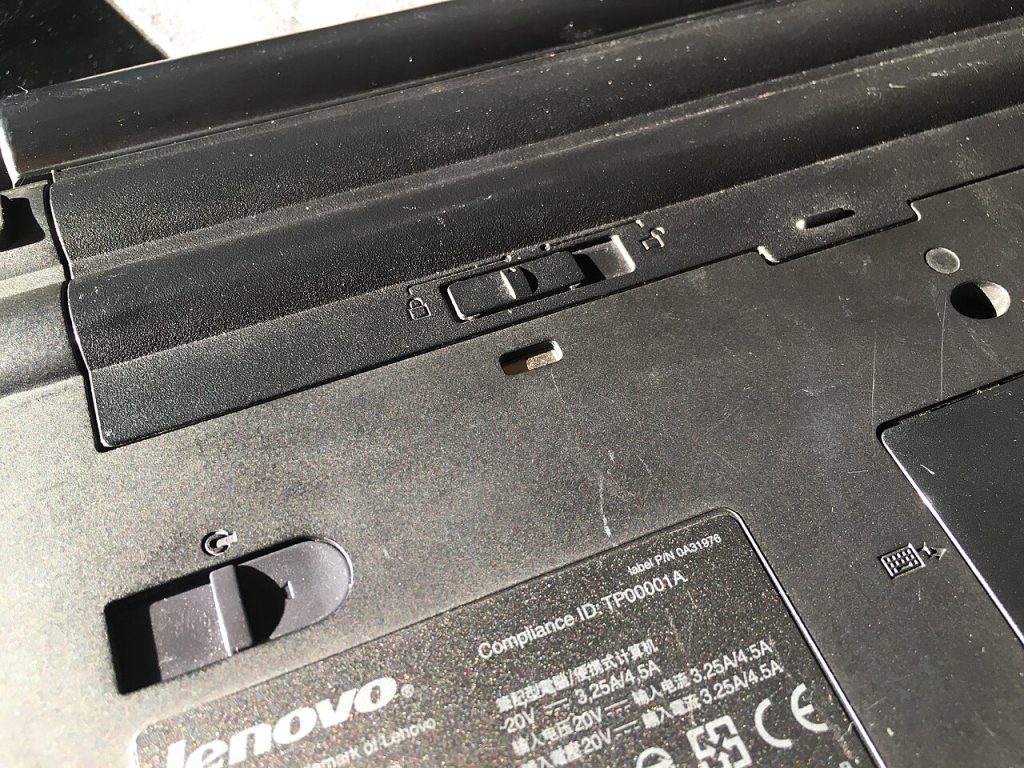

Your ThinkPad has started to feel slightly different. The trackpad may sit higher than it used to, the laptop may rock on a flat desk, or a gap may have opened along the edge of the case. These small changes can mean the battery inside has begun to swell. A swollen battery is one laptop fault you should not leave until later, because it is a safety issue as well as a repair. Here is how to spot it, what to do straight away and what the repair involves.
Why laptop batteries swell
ThinkPads use lithium-based rechargeable batteries. As the cells age, or if they are damaged or get too hot, chemical changes inside can produce gas. In a slim battery pack that gas has nowhere to go, so the pack puffs up and pushes against whatever is around it. It can happen with age and heavy use, but it can also follow a knock, sustained heat or a poor-quality replacement battery.
Warning signs to look for
- The trackpad has changed. It sits proud of the palm rest, feels stiff, or will not click properly. The battery often sits directly beneath it.
- The keyboard has lifted. Keys near the front of the laptop bulge upwards or stop responding reliably.
- The laptop rocks on a desk. The base has bowed outwards, so it no longer sits flat.
- The case has opened up. You can see a gap along a seam, or the bottom cover no longer sits flush.
- The lid will not close flat. The base has been pushed out of shape.
- A removable battery no longer fits. It wobbles, sticks when you try to remove it, or looks rounded rather than flat.
What to do straight away
- Stop charging it. Unplug the charger and any dock.
- Back up only if it is safe to do so. If you have files that are not backed up and the laptop is working normally, copy them over promptly. Do not do this if the laptop is hot or there is any sign of smoke or a strange smell.
- Shut it down fully. Use a full shutdown rather than sleep, so that the laptop is not left running.
- Put it somewhere safe. Leave it on a hard, non-flammable surface in a cool, ventilated place, away from anything that burns easily. Do not leave it on a bed or sofa, or in a bag.
If the battery is hot, hissing, smoking or giving off a strong chemical smell, do not touch it. Move away, keep other people away and call 999 if there is any sign of fire.
What to avoid
- Do not press it flat. Squeezing the case or forcing the lid shut can damage the cells.
- Do not puncture it. Never try to release the gas. Damaged lithium cells can catch fire.
- Do not keep using it because it still works. A swollen battery can seem to work normally, and it will not recover.
- Do not lever out a built-in battery. Prising a swollen pack out of a laptop risks bending or piercing it.
- Do not put it in the household bin. Lithium batteries must not go in general waste, and damaged ones need particular care.
- Do not post it or take it on a flight. Damaged lithium batteries are subject to strict transport rules, and couriers and airlines generally will not carry them.
That last point matters if you were planning to send the laptop to us. If you suspect a swollen battery, phone us first and we will tell you the safest way to get it to our workshop.
Built-in and removable batteries
Older ThinkPads, such as the T430 and X230, have a removable battery that slides out once you release the catches. Later models moved to internal batteries, and current ThinkPads use a built-in battery that sits under the bottom cover. Some models, including the T440, T450, T460 and T470, have both a built-in battery and a removable one, so either could be the cause. If you have one of these, do not assume that the removable pack is the one at fault just because it is the one you can see. Our ThinkPad T series and X1 series pages have more on these ranges.
Reducing the risk next time
- Use a charge threshold. If your ThinkPad spends most of its time plugged in, Lenovo Vantage can stop charging below 100%, which reduces the strain on the battery.
- Keep it cool. Keep the vents clear and do not use it on soft surfaces. If it often runs hot, read our guide to overheating and loud fans.
- Check its condition now and then. Lenovo Vantage shows battery information, and running
powercfg /batteryreportin Windows produces a report on its capacity. Neither can detect swelling, so check the case as well.
What the repair involves
We open the laptop carefully and remove the swollen battery without bending it. A battery replacement then fits a new pack made for your model, and the old one is set aside for proper recycling. While it is open, we check the parts that have been under pressure. The trackpad and keyboard often go back to normal once the pressure has gone, but if the swelling has damaged them or bent the case, we tell you before doing anything further. You can also get a guide figure from our repair price calculator.
Book a Lenovo repair
Bring your laptop to our London SE1 workshop (Monday to Saturday, 9am to 6pm), or we can arrange a courier collection from anywhere in the UK. Tell us the model and what you have noticed about the battery or case, and we agree the price with you before any work starts.
Call 020 7394 2525, email info@creativeit.tv, or book a repair online.
Data recovery for every Lenovo
Laptop dead, SSD not detected, files deleted or Windows reset? We recover documents, photos and email from every ThinkPad, ThinkBook, IdeaPad, Yoga, Legion and LOQ at our London SE1 lab, even when the laptop itself can’t be repaired.
- Dead or liquid-damaged laptops
- SSDs and hard drives not detected
- Deleted files and reset laptops
- BitLocker, with your recovery key
Free consultation. No data, no recovery fee.
Get your Lenovo fixed
Book online and you get a job number by email straight away. Bring the laptop to our London SE1 workshop, or we arrange a courier collection from anywhere in the UK.