
Lenovo laptop plugged in but not charging: causes and fixes
2 November 2026 · Lenovo news
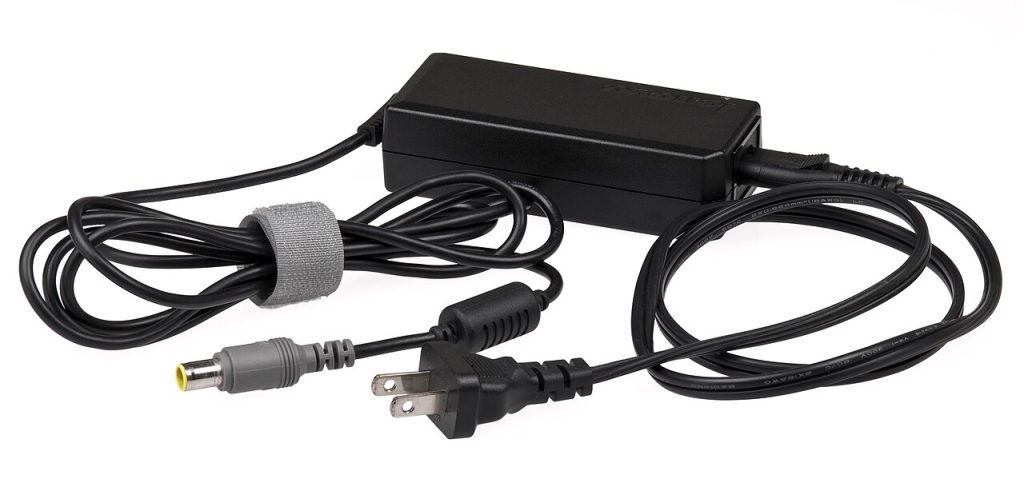

The charger is plugged in, the light is on, but the battery icon says plugged in, not charging, or the percentage keeps falling. On Lenovo laptops this is often a setting rather than a fault. When it is a fault, the cause is usually the charger, the charging port or the battery itself. Here is how to tell them apart.
Check Lenovo’s battery settings first
Lenovo laptops can deliberately stop charging to protect the battery, and this catches a lot of people out.
- IdeaPad, Yoga and Legion: Conservation Mode. Open Lenovo Vantage (or Legion Space on newer Legions), go to the power or battery settings and look for Conservation Mode. When it is on, the battery stops charging at around 60 to 80%, depending on the model. If your laptop always stops at the same percentage, this is almost certainly why.
- ThinkPad: charge thresholds. In Lenovo Vantage, look for Battery charge threshold. A ThinkPad set to start charging at 75% will show “not charging” at 80% and simply wait. That is normal behaviour.
- Rapid Charge and Smart Charging can also change when and how fast the battery charges. If you are unsure, turn them off while you test.
Leaving these protection settings on is a good idea if the laptop spends most of its time on a desk. It noticeably extends the life of the battery.
Rule out the charger and the socket
- Check the wattage. Look at the label on the charger. A 45W USB-C phone or tablet charger plugged into a laptop that needs 65W or more may keep it running but not charge it, and Windows or the BIOS may warn about a low-wattage adapter. Use the original Lenovo charger, or one of the same wattage, when testing.
- Try another socket and lead. Many Lenovo chargers have a separate mains lead, and these do fail. If you can borrow a known-good Lenovo charger, it is the quickest test there is.
- Try the other USB-C port. On many ThinkPads and Yogas, only some USB-C ports accept power, usually the ones marked with a charging symbol.
- Wiggle test. If charging cuts in and out when you move the plug, the charging port or the DC jack is worn or loose inside. Stop using it like that, because a loose connection can overheat. We replace these regularly; see charging port and DC jack repairs.
Reset the power and the battery driver
- Unplug the charger, shut the laptop down and hold the power button for 15 to 20 seconds.
- On models with an emergency reset pinhole underneath, press it with a straightened paper clip for a few seconds with the charger unplugged.
- Reconnect the charger, start Windows and open Device Manager. Under Batteries, uninstall Microsoft ACPI-Compliant Control Method Battery, then restart. Windows reinstalls it automatically.
- Install any BIOS and power management updates offered by Lenovo Vantage. Lenovo regularly fixes charging behaviour in BIOS updates.
Signs the battery itself is worn or failing
- The laptop dies at 20 or 30%, or the percentage jumps around.
- Lenovo Vantage reports the battery health as poor, or the full charge capacity is far below the design capacity.
- The laptop only works on the charger and turns off the moment you unplug it.
- The trackpad or keyboard is lifting, or the case is bulging. This means the battery is swelling. Stop using and charging the laptop, keep it away from soft furnishings, and get the battery replaced as soon as possible.
Almost every current Lenovo laptop has an internal battery, so it is no longer a case of clipping a new one in. We fit good-quality replacements for ThinkPad, IdeaPad, Yoga and Legion models; see Lenovo battery replacement.
When it is the motherboard
If the laptop shows no sign of power with a known-good charger, or the charging light comes on but the laptop never sees the charger, the fault is often in the charging circuit on the motherboard. A failed charging chip or a damaged USB-C controller is a component-level repair, and usually far cheaper than a new board. See motherboard repairs.
Book a Lenovo repair
Bring your laptop to our London SE1 workshop (Monday to Saturday, 9am to 6pm), or we can arrange a courier collection from anywhere in the UK. Tell us the model and what the battery icon shows, and we agree the price with you before any work starts.
Call 020 7394 2525, email info@creativeit.tv, or book a repair online.
Data recovery for every Lenovo
Laptop dead, SSD not detected, files deleted or Windows reset? We recover documents, photos and email from every ThinkPad, ThinkBook, IdeaPad, Yoga, Legion and LOQ at our London SE1 lab, even when the laptop itself can’t be repaired.
- Dead or liquid-damaged laptops
- SSDs and hard drives not detected
- Deleted files and reset laptops
- BitLocker, with your recovery key
Free consultation. No data, no recovery fee.
Get your Lenovo fixed
Book online and you get a job number by email straight away. Bring the laptop to our London SE1 workshop, or we arrange a courier collection from anywhere in the UK.