
Lenovo USB-C port not working: charging, devices and displays
8 November 2026 · Lenovo news
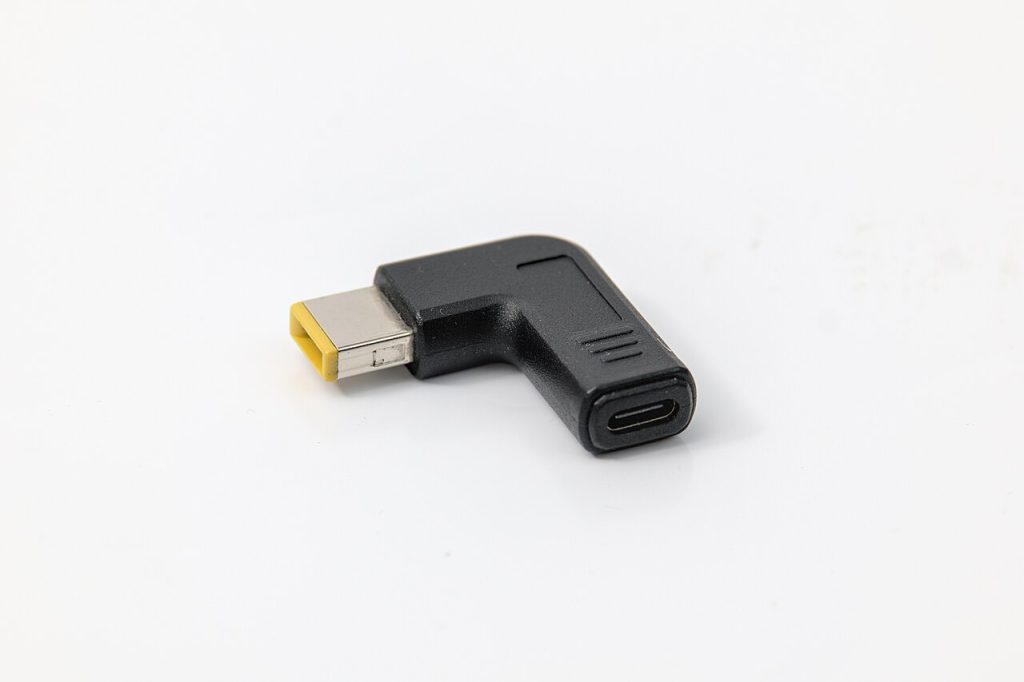

The USB-C port on your Lenovo laptop has stopped charging, will not recognise a memory stick or phone, or no longer sends a picture to your monitor. Perhaps the charger only works if you hold the plug at a certain angle. On most recent ThinkPad, ThinkBook, IdeaPad and Yoga models, USB-C does several jobs at once, including charging, data and video, so a fault here can be a big problem. The good news is that the cause is often the cable, the charger or a bit of fluff in the port. Here is how to narrow it down safely.
Start with the cable and charger
- Try another cable. USB-C cables vary a lot. A cheap phone cable may carry slow charging but not data or video, so test with a good-quality cable you know works.
- Use a suitable charger. A low-power phone charger may not charge a laptop at all, or only very slowly. Use the genuine Lenovo charger that came with the laptop, or one with at least the same wattage. Our guide to a Lenovo laptop that is plugged in but not charging covers charger checks in more detail.
- Test the charger elsewhere. If you have another USB-C laptop or device, see whether the charger works with that. This tells you quickly whether the charger or the laptop is at fault.
- Remove the dock. If you normally use a USB-C dock or hub, plug the charger or device straight into the laptop instead. Docks can fail, and they often need their own firmware updates.
Check the port itself
- Try the other ports. If your laptop has more than one USB-C port, try each one. On some models, not every port supports charging or video. Look for small symbols next to each port, such as a lightning bolt for Thunderbolt, a charging symbol or a DisplayPort symbol, or check the user guide for your model.
- Look inside the port. Shut the laptop down and shine a torch into the port. Pocket fluff and dust can pack in at the back and stop the plug going all the way in.
- Clean it gently. Use a short burst of compressed air, or carefully use a wooden toothpick to lift out debris. Never use anything metal, and take care not to bend the thin tongue in the middle of the port.
- Check the fit. A good USB-C plug should click in firmly and not wobble. If it feels loose in one port but tight in the other, the loose one may be worn or damaged.
Check Windows, drivers and firmware
- Restart the laptop. Use Restart from the Start menu, then try the device again.
- Look in Device Manager. Right-click Start, choose Device Manager and expand Universal Serial Bus controllers. A yellow warning triangle on an entry there points towards a driver problem.
- Run Lenovo updates. Open Lenovo Vantage and install the available updates for your model, including BIOS, chipset and, where offered, Thunderbolt or USB-C firmware. Lenovo has released firmware updates for some models to fix USB-C and Thunderbolt port problems, so it is worth keeping them current. Keep the laptop plugged in while a BIOS or firmware update runs, and do not switch it off part way.
- Check the display settings. If only video has stopped, press the Windows key and P together and choose Extend or Duplicate. Also check that the monitor is set to the right input.
Signs it needs a repair
- The plug is loose or wobbly, or the charger only works when held at an angle.
- The port stopped working after the laptop was dropped with a cable plugged in.
- You can see a bent or broken centre tongue, scorch marks or corrosion inside the port.
- There was a burning smell, a spark or a hot plug. Stop using that port straight away.
- The laptop will not charge from any port with a genuine charger and a known good cable.
- The battery is draining or swelling, or the laptop will not turn on at all.
What the repair involves
We start by testing the laptop with known good chargers, cables and devices to find out whether the fault is the port, the charging circuit, the battery or the motherboard. That way you only pay for the repair you actually need.
On some models, including many recent ThinkPads, the USB-C ports sit on a small separate board that can be replaced on its own. On others, the port is soldered directly to the motherboard, and we remove the damaged connector and solder a new one in place through our charging port repair service. If the charging circuit or a chip near the port has failed, the work comes under our motherboard repair service. If the battery has worn out or swollen, we can fit a new one through our battery replacement service.
You can get an idea of costs with our repair price calculator, or read more about the models we work on through our ThinkPad repair page.
Book a Lenovo repair
Bring your laptop to our London SE1 workshop (Monday to Saturday, 9am to 6pm), or we can arrange a courier collection from anywhere in the UK. Tell us the model and what the USB-C port is doing, and we agree the price with you before any work starts.
Call 020 7394 2525, email info@creativeit.tv, or book a repair online.
Data recovery for every Lenovo
Laptop dead, SSD not detected, files deleted or Windows reset? We recover documents, photos and email from every ThinkPad, ThinkBook, IdeaPad, Yoga, Legion and LOQ at our London SE1 lab, even when the laptop itself can’t be repaired.
- Dead or liquid-damaged laptops
- SSDs and hard drives not detected
- Deleted files and reset laptops
- BitLocker, with your recovery key
Free consultation. No data, no recovery fee.
Get your Lenovo fixed
Book online and you get a job number by email straight away. Bring the laptop to our London SE1 workshop, or we arrange a courier collection from anywhere in the UK.