
Lenovo trackpad not working or jumping: what to check
7 November 2026 · Lenovo news
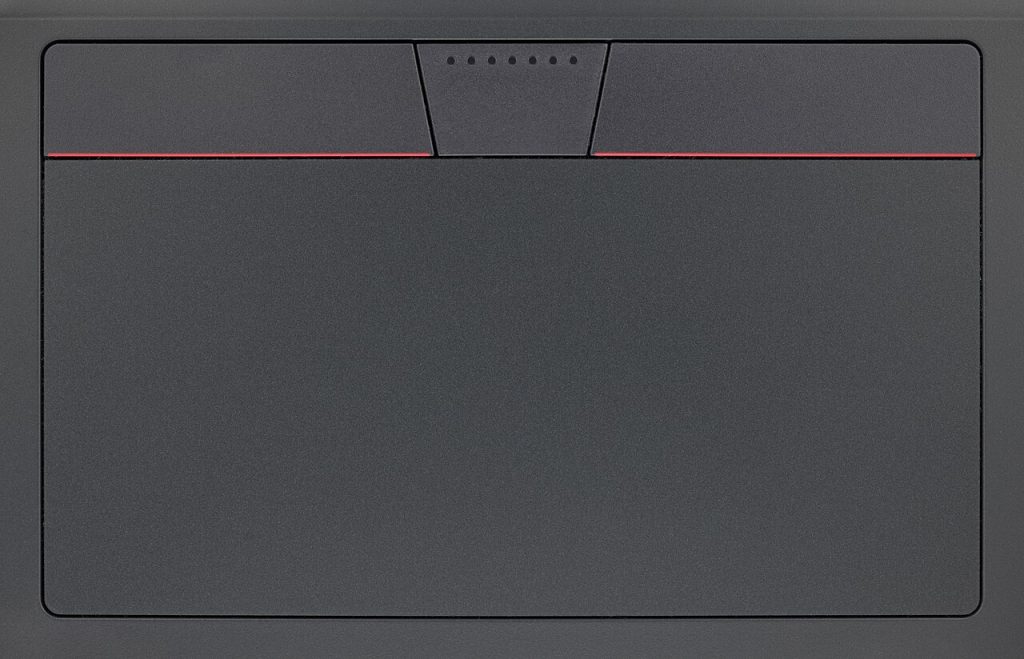

The pointer on your Lenovo laptop has stopped moving, or it jumps around the screen, clicks by itself or only works some of the time. A trackpad problem can make a laptop very hard to use, but it is often caused by a setting or a driver rather than a broken part. It can also be an early sign of something more serious, such as a swollen battery. Here is how to work through the likely causes safely. A USB mouse makes these checks much easier, so plug one in if you have one.
If the trackpad has stopped completely
- Check the trackpad key. Many IdeaPad and Yoga models can turn the trackpad off from the keyboard, often with F6 or Fn + F6. Look for a key with a small trackpad icon and press it once.
- Restart the laptop. Use Restart from the Start menu. You can reach it from the keyboard by pressing the Windows key, then Tab and the arrow keys.
- Check Windows settings. In Windows 11, go to Settings, Bluetooth & devices, Touchpad, and make sure the Touchpad switch is on. Also look at the option to leave the touchpad on when a mouse is connected, as it may be switching off whenever a mouse is plugged in.
- Unplug everything. Remove USB devices and any dock, then test it again. A wireless mouse receiver can also confuse the picture, so take that out too.
- Check the BIOS on a ThinkPad. Tap F1 at startup, then look under Config and Keyboard/Mouse to see that the trackpad is enabled. Press Esc and leave without saving if you have not changed anything, as changes to the BIOS can trigger a BitLocker prompt.
If you own a Yoga or another 2-in-1, the keyboard and trackpad switch off when the screen folds back into tablet mode. If both have stopped working, open the laptop into normal laptop position and restart it.
If the pointer jumps or moves by itself
- Clean the surface. Shut the laptop down and wipe the trackpad with a slightly damp microfibre cloth, then let it dry. Grease and moisture can confuse the sensor, and damp or very dry fingers can too.
- Try it on battery. Unplug the charger and test the trackpad. If the jumping stops, the charger or the mains socket may be causing electrical interference. This is more likely with a damaged or non-genuine charger, so try a genuine Lenovo one.
- Adjust the sensitivity. In the Windows Touchpad settings, change the sensitivity setting if your palm or thumb keeps moving the pointer as you type.
- Remove other pointing devices. A Bluetooth mouse or a tablet pen left nearby can move the pointer on its own, so turn it off and test again.
Check the driver
- Open Device Manager. Right-click Start and choose Device Manager, then expand Mice and other pointing devices and Human Interface Devices. The trackpad may be listed as a Synaptics or ELAN device, or as an I2C HID device.
- Look for a warning. A yellow triangle suggests a driver problem, while a device that is missing altogether points more towards hardware.
- Roll back a recent update. If the trouble started after an update, open the device’s properties and try Roll Back Driver on the Driver tab, if the option is available.
- Install the Lenovo driver. Use Lenovo Vantage, or find the driver for your exact model on Lenovo’s support site using the serial number.
- Reinstall it. Uninstall the device in Device Manager and restart. Windows normally sets it up again by itself.
Check for a swollen battery
Look closely at the trackpad from the side. If it has lifted, stopped clicking properly or sits higher than the palm rest, the battery underneath may be swelling. You might also see the base bulging, or the laptop rocking on a flat surface. Stop using the laptop, unplug it and keep it away from heat. Do not press the trackpad down or try to puncture anything. Our guide to battery swelling warning signs explains what to do next, and we can fit a new battery through our battery replacement service.
Signs it needs a repair
- The trackpad does not appear in Device Manager at all.
- It still does not work after a driver reinstall and a restart.
- The click has gone stiff or stopped, or the pad feels loose or raised.
- It stopped working after a drop or a spilled drink.
- The trackpad and some keys have failed together.
- Only part of the surface responds.
What the repair involves
We start by testing the laptop to find out whether the fault is in software, the trackpad itself, its ribbon cable or the motherboard. If Windows is the cause, the fix may be part of our software repair service. If the cable has come loose or been damaged, we reseat or replace it.
A failed trackpad is replaced with a part that suits your exact model. On some slim laptops, a lot of the machine has to come apart to reach it. If liquid has got in, we check the keyboard and other nearby parts as well through our liquid damage repair service. You can also find out more about the models we work on through our ThinkPad, IdeaPad and Yoga repair pages.
Book a Lenovo repair
Bring your laptop to our London SE1 workshop (Monday to Saturday, 9am to 6pm), or we can arrange a courier collection from anywhere in the UK. Tell us the model and what the trackpad is doing, and we agree the price with you before any work starts.
Call 020 7394 2525, email info@creativeit.tv, or book a repair online.
Data recovery for every Lenovo
Laptop dead, SSD not detected, files deleted or Windows reset? We recover documents, photos and email from every ThinkPad, ThinkBook, IdeaPad, Yoga, Legion and LOQ at our London SE1 lab, even when the laptop itself can’t be repaired.
- Dead or liquid-damaged laptops
- SSDs and hard drives not detected
- Deleted files and reset laptops
- BitLocker, with your recovery key
Free consultation. No data, no recovery fee.
Get your Lenovo fixed
Book online and you get a job number by email straight away. Bring the laptop to our London SE1 workshop, or we arrange a courier collection from anywhere in the UK.