
Lenovo laptop overheating or the fan is loud: what to check
2 November 2026 · Lenovo news
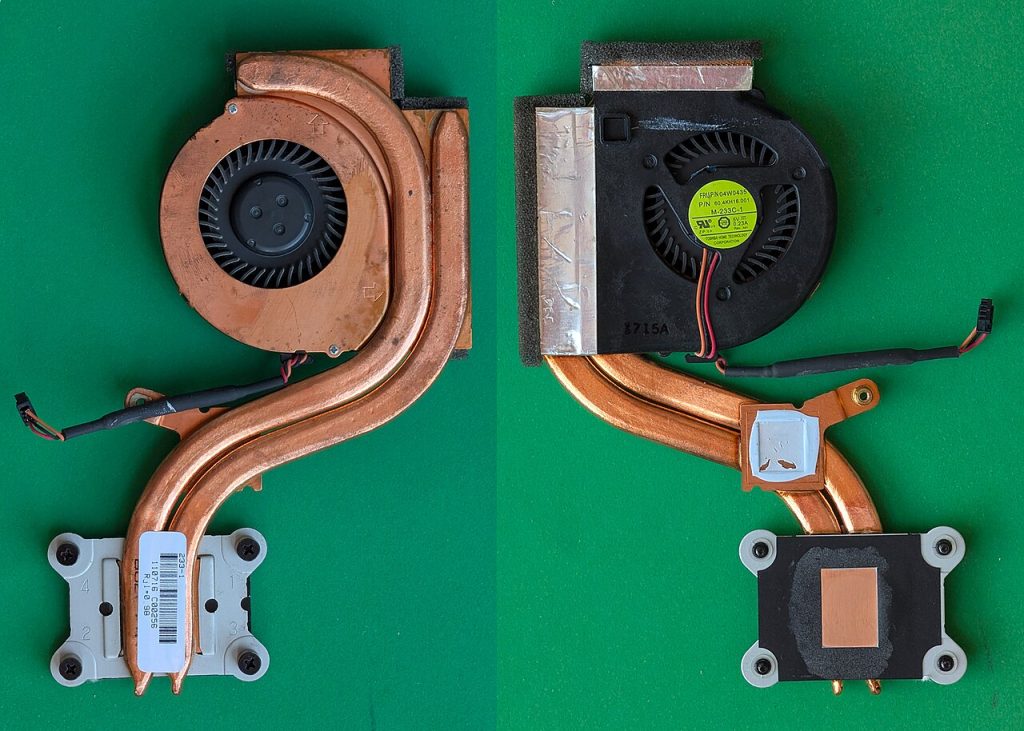

A hot underside, a fan that roars as soon as you open a browser, or a laptop that slows right down or switches itself off: these are all signs that a Lenovo laptop isn’t getting rid of heat properly. Some causes you can fix in minutes. Others need the laptop opening up. Here is how to work out which you have.
Is it actually a problem?
Modern laptops are designed to run warm and to spin the fan up under load. Gaming on a Legion or LOQ, exporting video or running a Windows update will make the fan loud, and that is normal. It becomes a problem when:
- the fan runs loudly when the laptop is doing almost nothing;
- the laptop gets noticeably slower the longer you use it (thermal throttling);
- it switches itself off without warning, especially under load;
- the fan makes a grinding, rattling or ticking noise;
- a ThinkPad shows a Fan error message at startup and turns off.
Quick checks you can do yourself
- Check what is running. Open Task Manager (Ctrl+Shift+Esc) and sort by CPU. A stuck update, a browser tab or malware running in the background can keep the processor busy and the fan spinning. If you suspect malware, see our software and virus repairs.
- Check the cooling mode. On most IdeaPad, Yoga, Legion and LOQ laptops, Fn+Q switches between quiet, balanced and performance modes, and the power button or a screen message often shows the current one. The same setting is in Lenovo Vantage or Legion Space. ThinkPads use the Windows power mode in Settings.
- Give it room to breathe. Most Lenovo laptops draw air in from underneath and push it out at the back or side. On a duvet, sofa or lap, the intake is blocked. Use it on a hard, flat surface, and make sure the exhaust vent isn’t against a wall.
- Update the BIOS. Lenovo Vantage offers BIOS and firmware updates that often adjust fan behaviour and fix overheating bugs.
One thing we don’t recommend is blowing compressed air into the vents with the laptop closed. It can spin the fan past its rated speed and damage the bearing, and it often just pushes the dust further into the heatsink.
What causes overheating inside
- Dust in the heatsink. Over a year or two, fluff builds up as a mat between the fan and the heatsink fins, choking the airflow. It is the most common cause we see, especially in homes with pets.
- Dried-out thermal paste. The paste between the processor and the heatsink dries out after a few years, and the processor then runs hot even with a clean fan.
- A worn fan. A worn bearing rattles or grinds and the fan slows down. A fan that has stopped completely triggers the ThinkPad fan error or a sudden shutdown.
Why it is worth fixing
Running hot for months shortens the life of the battery and stresses the motherboard, particularly the graphics chip on gaming laptops. A professional clean and repaste takes less than an hour on the bench. It usually brings temperatures down noticeably, makes the laptop quieter and restores lost performance.
See our Lenovo overheating and fan repair service. If your laptop has already started shutting down or showing graphics faults, it may need a motherboard repair too, and we will tell you before we start.
Book a Lenovo repair
Bring your laptop to our London SE1 workshop (Monday to Saturday, 9am to 6pm), or we can arrange a courier collection from anywhere in the UK. Tell us the model and what it is doing, and we agree the price with you before any work starts.
Call 020 7394 2525, email info@creativeit.tv, or book a repair online.
Data recovery for every Lenovo
Laptop dead, SSD not detected, files deleted or Windows reset? We recover documents, photos and email from every ThinkPad, ThinkBook, IdeaPad, Yoga, Legion and LOQ at our London SE1 lab, even when the laptop itself can’t be repaired.
- Dead or liquid-damaged laptops
- SSDs and hard drives not detected
- Deleted files and reset laptops
- BitLocker, with your recovery key
Free consultation. No data, no recovery fee.
Get your Lenovo fixed
Book online and you get a job number by email straight away. Bring the laptop to our London SE1 workshop, or we arrange a courier collection from anywhere in the UK.