
Lenovo laptop Wi-Fi not working or keeps disconnecting
8 November 2026 · Lenovo news
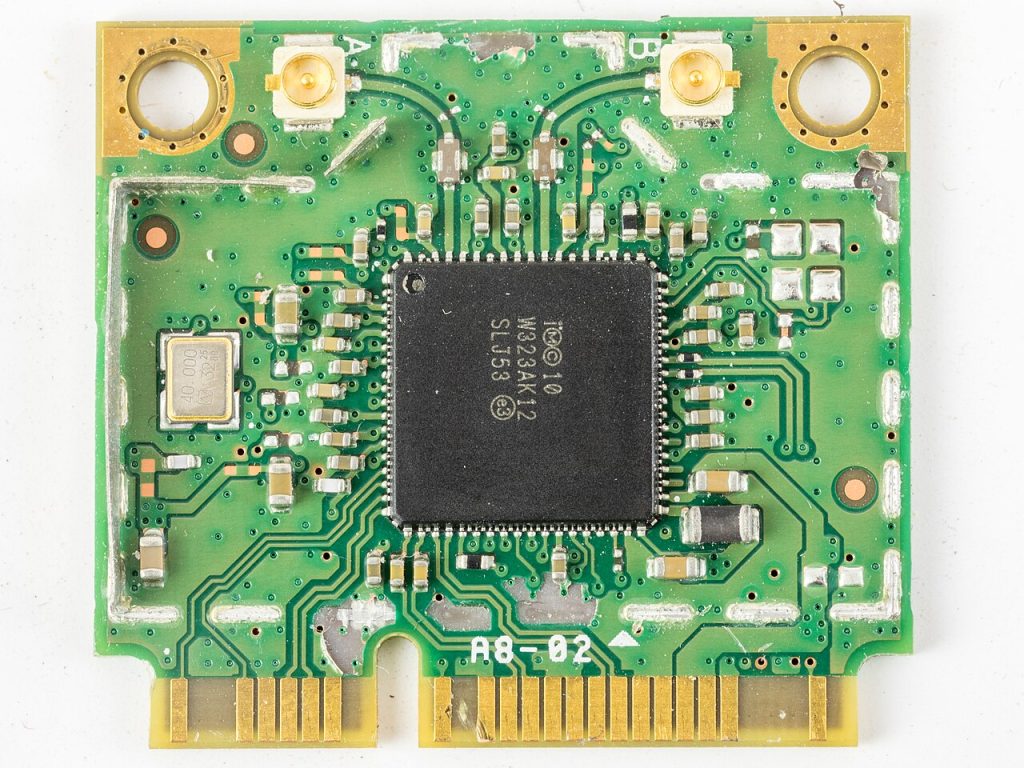

Your Lenovo laptop will not find any Wi-Fi networks, says “No internet” while your phone is fine, or keeps dropping the connection every few minutes. Wi-Fi problems are frustrating because they cut you off from everything else, but most of them come down to a setting, a power-saving option or a driver rather than a broken part. Here is how to work through the likely causes safely, starting with the quickest checks.
First, check whether the problem is the laptop or the network
- Try another device. If your phone or another computer also struggles on the same network, the router or broadband is the more likely cause.
- Restart the router. Switch it off at the wall, wait about 30 seconds and switch it back on. Give it a few minutes to reconnect before testing again.
- Try another network. A phone hotspot is an easy test. If the laptop connects to that without trouble, the fault is less likely to be inside the laptop.
- Move closer. If the connection only drops in certain rooms, the signal may simply be weak there. A 5 GHz network is faster but has a shorter range than 2.4 GHz, so walls and floors affect it more.
If the laptop cannot see any networks
- Check aeroplane mode. Click the network icon at the bottom right of the screen and make sure Aeroplane mode is off and Wi-Fi is on. Many Lenovo keyboards have a key with an aeroplane icon in the top row, and it is easy to press by accident.
- Look for a wireless switch. Some older ThinkPads have a small physical switch on the side or front edge that turns the wireless off. Slide it to the on position.
- Restart properly. Use Restart from the Start menu rather than Shut down, as a restart gives Windows a clean start.
- Check Device Manager. Right-click Start, choose Device Manager and expand Network adapters. You should see a wireless adapter, often from Intel, Realtek, Qualcomm or MediaTek. A yellow warning triangle points to a driver problem. If there is no wireless adapter listed at all, the hardware may not be detected.
- Check the BIOS on a ThinkPad. Tap F1 at startup and check that wireless LAN has not been disabled. On many ThinkPads this is under Security, then I/O Port Access. Press Esc and leave without saving if you have not changed anything, as BIOS changes can trigger a BitLocker recovery prompt.
If the Wi-Fi keeps disconnecting
- Turn off power saving for the adapter. In Device Manager, right-click the wireless adapter, choose Properties and open the Power Management tab. Untick the option that allows the computer to turn off this device to save power, then restart.
- Forget and rejoin the network. In Windows 11, go to Settings, Network & internet, Wi-Fi, Manage known networks. Select your network, choose Forget, then connect again and re-enter the password.
- Update the driver. Use Lenovo Vantage to check for updates, or download the wireless driver for your exact model from Lenovo’s support site using the serial number on the label underneath.
- Roll back a recent update. If the drop-outs started straight after an update, open the adapter’s properties in Device Manager and try Roll Back Driver on the Driver tab, if it is available.
- Reset the network settings. In Settings, Network & internet, Advanced network settings, choose Network reset. This removes and reinstalls your network adapters and forgets saved networks, so have your Wi-Fi password to hand.
Also think about anything plugged in nearby. Some USB 3 devices and docks can interfere with 2.4 GHz Wi-Fi, so unplug them and test again.
Signs it needs a repair
- The wireless adapter has disappeared from Device Manager and does not come back after a restart.
- The signal is always weak even when you sit next to the router, while other devices show full bars.
- The Wi-Fi stopped working after a drop, a spilled drink or a screen or hinge repair.
- The connection drops when you move the screen, which can point to a damaged antenna cable.
- Bluetooth has stopped working at the same time, as on most laptops both run through the same wireless card.
- A fresh driver, a network reset and a different network have not helped.
What the repair involves
We start by testing the laptop to find out whether the fault is in Windows, the wireless card, the antennas or the motherboard. If software is the cause, we can fix it as part of our software repair service without touching your files.
On many Lenovo laptops, the Wi-Fi card is a small removable M.2 module, so a failed card can be replaced with a compatible part. Some older ThinkPads only accept wireless cards approved for that model, so we make sure the replacement suits your exact machine. On some slim IdeaPad and Yoga models, the wireless chip is soldered to the board, and the work comes under our motherboard repair service.
The antenna cables run from the card, through the hinge and up into the screen. If a cable has been trapped, cut or pulled loose, often after hinge damage, we reconnect or replace it. If your hinge is also stiff or broken, our hinge repair service can sort both at once. You can read more about the models we work on through our ThinkPad and IdeaPad repair pages.
Book a Lenovo repair
Bring your laptop to our London SE1 workshop (Monday to Saturday, 9am to 6pm), or we can arrange a courier collection from anywhere in the UK. Tell us the model and what the Wi-Fi is doing, and we agree the price with you before any work starts.
Call 020 7394 2525, email info@creativeit.tv, or book a repair online.
Data recovery for every Lenovo
Laptop dead, SSD not detected, files deleted or Windows reset? We recover documents, photos and email from every ThinkPad, ThinkBook, IdeaPad, Yoga, Legion and LOQ at our London SE1 lab, even when the laptop itself can’t be repaired.
- Dead or liquid-damaged laptops
- SSDs and hard drives not detected
- Deleted files and reset laptops
- BitLocker, with your recovery key
Free consultation. No data, no recovery fee.

Get your Lenovo fixed
Book online and you get a job number by email straight away. Bring the laptop to our London SE1 workshop, or we arrange a courier collection from anywhere in the UK.