
Lenovo laptop fan rattling or grinding: what the noise means
7 November 2026 · Lenovo news
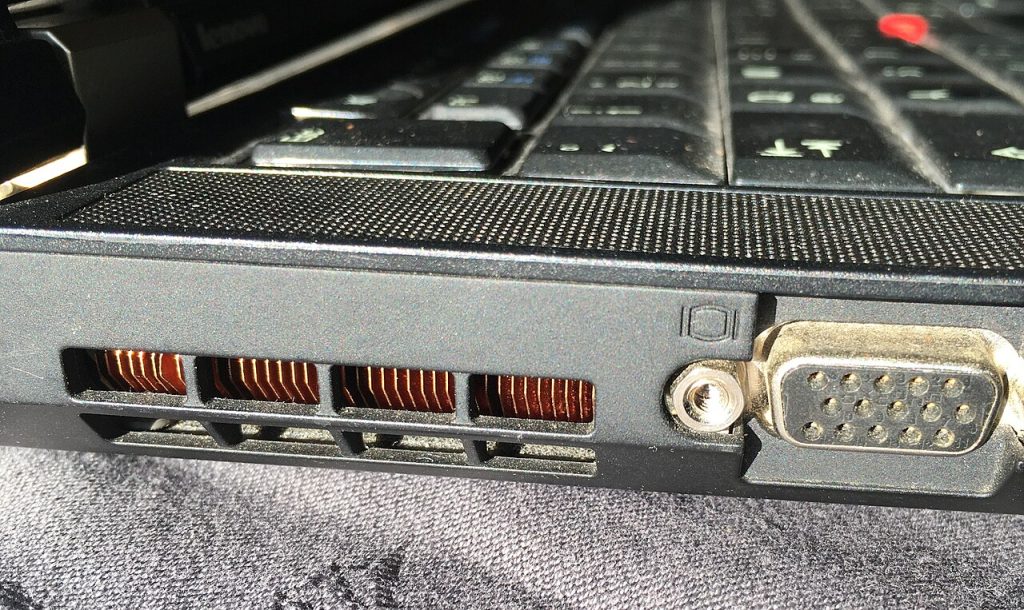

Your Lenovo laptop has started making a noise that a fan should not make. It might be a rattle when the fan speeds up, a steady grinding sound or a light ticking that comes and goes. A fan that gets louder under load is normal, but a rough or mechanical sound usually means something is wrong with the fan or something is touching it. The fan is what keeps your processor cool, so it is worth finding the cause before it stops altogether. Here is how to work out what you are hearing and what you can safely do about it.
What the noise usually means
- Rattling or buzzing. Often a build-up of dust, a fan blade that has gone out of balance, or a fan or cover that has worked slightly loose.
- Grinding or scraping. Usually a worn bearing. This tends to get worse over time and does not fix itself.
- Ticking or fluttering. Something light may be catching the blades, such as a clump of fluff, a hair or a displaced cable or piece of tape inside the laptop.
- Loud but smooth rushing air. This is the fan working hard, not failing. Our guide to a Lenovo laptop overheating or running a loud fan covers that problem.
Not every noise comes from the fan. On older models with a hard drive, clicking or grinding may be the drive instead. That is more urgent, so back up your files straight away if you can.
Checks you can do safely
- Find where the noise comes from. Listen near the vent. If the sound rises and falls with the fan speed, the fan is the likely source.
- Put the laptop on a hard, flat surface. A duvet or cushion blocks the air intake and makes the fan work harder. Check that the rubber feet are still in place too.
- See what is making the fan work. Open Task Manager with Ctrl + Shift + Esc and sort by CPU. A stuck program can keep the fan at high speed and make a small noise much more noticeable.
- Gently change the angle. Raise the back of the laptop a little while the noise is happening. If the sound changes or stops, the fan is probably worn or out of balance.
- Check the base. A loose screw or a cover that is not fully clipped in can buzz at certain fan speeds. Look for anything missing, but do not force the cover.
- Clean the vents from the outside. Shut the laptop down fully and unplug it. Use short bursts of compressed air across the vents, keeping the can upright. Avoid letting the air spin the fan quickly, as that can damage the bearing.
- Update the BIOS and drivers. Fan speed is controlled by the laptop’s firmware, and Lenovo sometimes improves this in updates. Use Lenovo Vantage, or Lenovo’s support site with your serial number.
Reduce the noise in the meantime
A quieter setting will not fix a worn fan, but it can make the laptop more bearable until it is repaired. Many IdeaPad, Yoga and Legion models let you switch performance mode with Fn + Q, and Lenovo Vantage offers similar settings on many models. On any Lenovo, you can also close programs you do not need and avoid heavy tasks such as gaming or video exports. Keep an eye on how hot the laptop gets.
What not to do
- Do not push anything through the vents. Cotton buds and cocktail sticks can snap a blade or leave debris behind.
- Do not use a vacuum cleaner on the vents. It can spin the fan too fast and may create static.
- Do not oil the fan. Household oils attract dust and can make the problem worse.
- Do not ignore a fan that has gone silent. If a noisy fan suddenly stops and the laptop runs hot, that is a bad sign rather than a fix.
Signs it needs a repair
- The grinding or rattling is still there after cleaning the vents.
- The noise is getting louder or happens more often.
- The fan does not spin at all, even when the laptop is warm.
- The laptop slows down badly or shuts down when it is busy.
- A ThinkPad shows “Fan error” at startup. Do not keep using the laptop if you see this message.
- The noise started after a drop, a spill or work inside the laptop.
Lenovo Diagnostics, included on many recent ThinkPads and available from Lenovo’s support site, can be useful if you want to run a test. A fan can still pass while sounding rough, though, so your ears matter as well.
What the repair involves
We open the laptop and test the fan, then look for anything touching the blades. If the fan only has dust inside, we clean it and the heatsink fins properly, which cannot be done from the outside. A worn bearing means replacing the fan. On many Lenovo laptops the fan and heatsink are a single assembly, and gaming models such as Legion laptops usually have more than one fan, so the work varies by model.
When the heatsink comes off, we replace the thermal paste before refitting it. We then run the laptop under load to check that temperatures and noise are back to normal. You can read more on our overheating repair page. We also repair cooling faults on ThinkPad, IdeaPad and Legion models.
Book a Lenovo repair
Bring your laptop to our London SE1 workshop (Monday to Saturday, 9am to 6pm), or we can arrange a courier collection from anywhere in the UK. Tell us the model and what the fan sounds like, and we agree the price with you before any work starts.
Call 020 7394 2525, email info@creativeit.tv, or book a repair online.
Data recovery for every Lenovo
Laptop dead, SSD not detected, files deleted or Windows reset? We recover documents, photos and email from every ThinkPad, ThinkBook, IdeaPad, Yoga, Legion and LOQ at our London SE1 lab, even when the laptop itself can’t be repaired.
- Dead or liquid-damaged laptops
- SSDs and hard drives not detected
- Deleted files and reset laptops
- BitLocker, with your recovery key
Free consultation. No data, no recovery fee.

Get your Lenovo fixed
Book online and you get a job number by email straight away. Bring the laptop to our London SE1 workshop, or we arrange a courier collection from anywhere in the UK.