
Lenovo keyboard backlight not working: Fn + Space and other fixes
6 November 2026 · Lenovo news
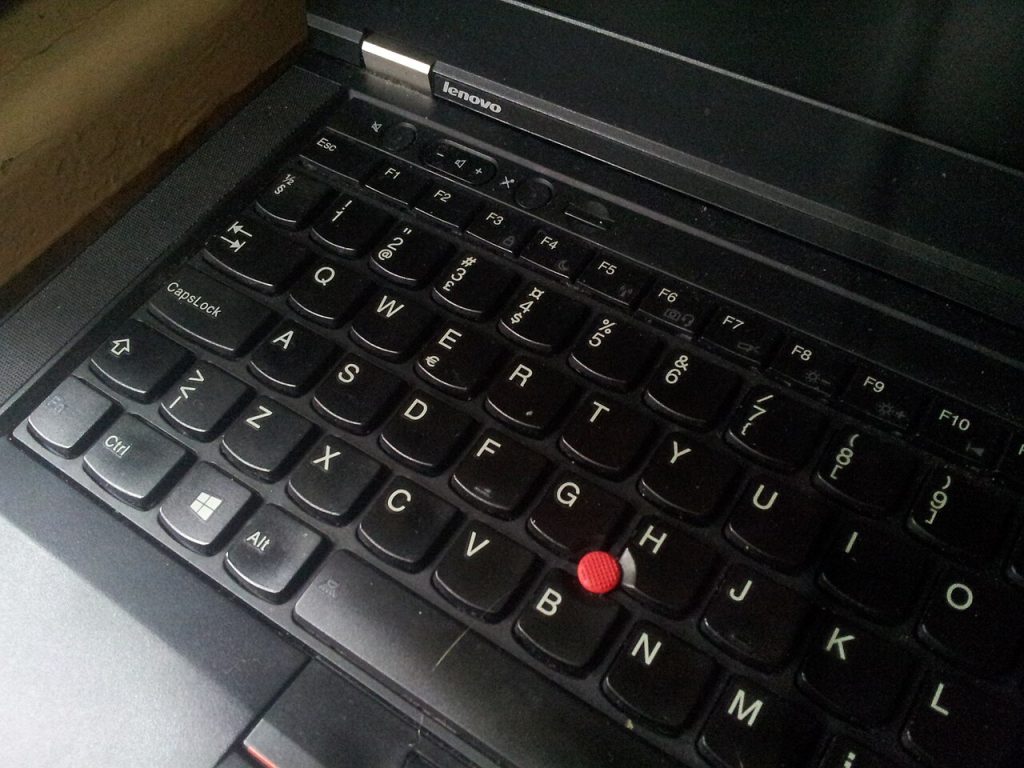

You sit down to work in a dim room and the keys on your Lenovo laptop stay dark. The keyboard still types normally, but the backlight will not come on, or it has started to flicker or light only part of the keyboard. Quite often this turns out to be a setting rather than a fault, so it is worth working through a few simple checks first. Here is what to try, how to tell a software problem from a hardware one, and what a repair involves.
Check that your laptop has a backlight
Not every Lenovo laptop has a backlit keyboard, even within the same range. Two laptops with the same model name may differ.
- Look at the space bar. Models with a backlight usually have a small light icon printed on the space bar.
- Check the specification. Search for your exact model or machine type on Lenovo’s support site. You will find it on the label on the underside of the laptop.
Older ThinkPads can cause some confusion here. Many had a ThinkLight, a small lamp above the screen that shines down on the keys and is switched with Fn + PgUp. That is a different feature from a keyboard backlight.
Try Fn + Space first
On most Lenovo laptops with a backlight, including ThinkPad, IdeaPad, Yoga and Legion models, holding Fn and tapping the space bar changes the setting.
- Hold down the Fn key.
- Tap the space bar once and look at the keyboard.
- Tap it again. Most models step through low, high and off, so you may need two or three taps.
The most common cause of a dark keyboard is that this shortcut has been pressed by accident and the backlight is simply set to off.
Other checks you can do safely
- Press a key and wait. Some models dim or switch off the backlight after a period without typing, so it may be behaving normally.
- Open Lenovo Vantage. On many models it has keyboard backlight settings in its device or input section. Check that nothing there has switched the backlight off.
- Check RGB settings on a Legion. If your Legion has a colour keyboard, its lighting is managed in Lenovo Vantage or Legion Space. A lighting profile set to off, or a brightness set to zero, will look like a fault.
- Install updates. Run Windows Update, then use Lenovo Vantage or Lenovo’s support site to install the latest BIOS and hotkey drivers for your model. If the on-screen indicator for Fn shortcuts has stopped appearing, a missing driver may be the reason.
- Clear residual power. Shut down, unplug the charger and any accessories, then hold the power button for about 15 seconds. Many ThinkPads also have a small emergency reset hole on the underside. Check your model’s manual before using it.
Test it outside Windows
Restart the laptop and open the BIOS setup screen, which is F1 on a ThinkPad and usually F2 or Fn + F2 on an IdeaPad, Yoga or Legion. Once you are there, press Fn + Space, without changing any settings, and then leave without saving.
If the backlight comes on in the BIOS, the hardware is working and the problem lies with Windows or a driver. If it stays dark, the hardware is more likely to be at fault, although the result is not conclusive because not every model responds to the shortcut there.
Signs it needs a repair
- It stopped after a spill. Liquid often damages the backlight layer even when the keys still work. If that has just happened, read our guide to what to do after a spill, as liquid damage can spread if it is left.
- Only part of the keyboard lights up. Dark patches or uneven light usually point to a failing backlight panel.
- It flickers. Flickering can mean a poor connection or a damaged cable.
- It stopped after a repair. The backlight cable may not have been reconnected, or the replacement keyboard may be a version without a backlight.
- Keys have also stopped working. If some keys are failing too, see our guide to a Lenovo keyboard that is not working.
Please do not lever off keys or open the laptop to look for the cable. The connectors are small and delicate, and a keycap clip is easy to break.
What the repair involves
On most laptops the backlight is built into the keyboard assembly as a thin layer under the keys, with its own small cable to the motherboard. We start by finding out which part has failed, because the fix depends on the cause.
- Connector or cable. If the cable has worked loose, we reseat it and test the backlight at every level.
- Keyboard. If the backlight layer has failed, a keyboard repair replaces the assembly with the correct backlit part for your model. On ThinkPads the keyboard is usually a separate part. On many slim IdeaPad and Yoga models it is fixed into the palm rest, which makes the job larger.
- Motherboard. If a new keyboard does not cure it, the fault may be in the backlight circuit on the board, which we can inspect and advise on.
If your laptop was supplied without a backlight, ask us whether a backlit keyboard can be fitted. On some models it is possible, but on others the laptop does not support it, so we check before suggesting it. You can also get a guide figure from our repair price calculator.
Book a Lenovo repair
Bring your laptop to our London SE1 workshop (Monday to Saturday, 9am to 6pm), or we can arrange a courier collection from anywhere in the UK. Tell us the model and what the backlight is doing, and we agree the price with you before any work starts.
Call 020 7394 2525, email info@creativeit.tv, or book a repair online.
Data recovery for every Lenovo
Laptop dead, SSD not detected, files deleted or Windows reset? We recover documents, photos and email from every ThinkPad, ThinkBook, IdeaPad, Yoga, Legion and LOQ at our London SE1 lab, even when the laptop itself can’t be repaired.
- Dead or liquid-damaged laptops
- SSDs and hard drives not detected
- Deleted files and reset laptops
- BitLocker, with your recovery key
Free consultation. No data, no recovery fee.

Get your Lenovo fixed
Book online and you get a job number by email straight away. Bring the laptop to our London SE1 workshop, or we arrange a courier collection from anywhere in the UK.