
Lenovo webcam not working: shutter, camera key and settings
3 November 2026 · Lenovo news
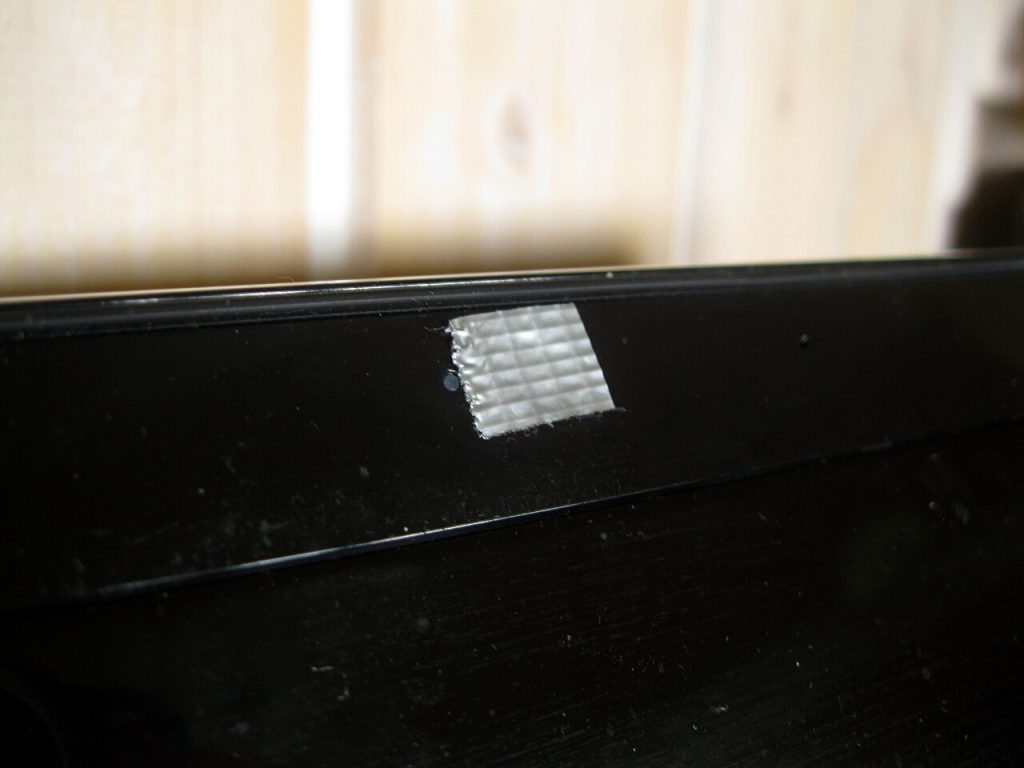

You join a Teams or Zoom call and the camera preview is black, shows a grey box with a camera icon, or says no camera was found. On Lenovo laptops this is very often caused by one of Lenovo’s own privacy features rather than a fault. Lenovo gives you several ways to switch the camera off, and it is easy to switch one on by accident. Work through the checks below before assuming the webcam has failed.
Check the privacy shutter
Most recent ThinkPad, ThinkBook, IdeaPad and Yoga models have a small physical cover over the lens, which Lenovo calls ThinkShutter on ThinkPads. When it is closed, the camera still works, but the picture is completely black or shows a red or striped cover.
- Look closely at the lens in the top bezel. If you can see a coloured dot or a plastic tab over it, slide the tab sideways to open it.
- On some models the shutter is a small slider on the top edge of the lid rather than on the front of the bezel.
- If the image is black but the camera light comes on, a closed shutter is the most likely cause.
Check the camera key or switch
Many IdeaPad, Yoga and ThinkBook models have an electronic camera kill switch instead of, or as well as, a shutter.
- Function key. Look along the top row of the keyboard for a key with a camera icon, often with a line through it. On many models this is F8 or F10. Press it once (or with the Fn key) and watch for an on-screen message saying the camera is on or off.
- Side switch. Some IdeaPads have a small sliding switch with a camera symbol on the right-hand side of the base. When it is set to off, Windows behaves as if no camera is fitted at all.
- When the camera is disabled electronically, it usually disappears from Device Manager completely, which can look like a hardware fault.
Check Lenovo Vantage
- Open Lenovo Vantage from the Start menu.
- Go to Device, then Display & Camera (the wording varies slightly between versions).
- Make sure Camera Privacy Mode is turned off. When it is on, the camera is blocked for every app.
- While you are there, install any system updates Vantage offers, including camera drivers and BIOS updates.
Check the Windows camera settings
- Open Settings, then Privacy & security, then Camera. Make sure Camera access is on, and that Let apps access your camera and Let desktop apps access your camera are both on. Teams, Zoom and most browsers count as desktop apps.
- Open the Windows Camera app. If the camera works there but not in your meeting app, the problem is that app’s settings, not the laptop. Check the camera selected in the app’s own audio and video settings.
- Only one app can use the camera at a time. Close other meeting apps, browser tabs with video calls, and anything running in the system tray, then try again.
- Some antivirus programs have their own webcam protection that blocks apps. Check its settings if the camera stopped working after an install.
- If you use an external webcam or a dock, unplug them while testing, so the meeting app is not trying to use a different camera.
Reinstall the camera driver
- Right-click the Start button and open Device Manager.
- Expand Cameras (or Imaging devices on some laptops). Right-click the integrated camera and choose Uninstall device.
- Restart the laptop. Windows reinstalls the camera automatically.
- If the camera has a yellow warning triangle, or Windows offers an optional driver update for it, install the latest driver from Lenovo Vantage or Lenovo’s support site for your exact model.
Persistent driver and Windows problems are something we sort out as part of our software repair service.
Signs the webcam needs a repair
- The shutter is open, the camera key and Vantage are set to on, and the camera still does not appear in Device Manager.
- The camera appears and disappears, or cuts out when you move the lid. This points to a damaged cable running through the hinge.
- The picture is heavily distorted, has coloured lines, or is very dark even in good light.
- Windows Hello face recognition stopped working at the same time. On models with an infrared camera, the IR and normal cameras are usually on the same module.
- The camera failed after a drop, a liquid spill or a screen replacement elsewhere.
What the repair involves
The webcam is a small module built into the top of the screen assembly. It connects to the motherboard through a thin cable that runs down the side of the screen and through the hinge, usually sharing the same route as the display cable. To reach it, we remove the screen bezel or, on laptops with a glass or one-piece screen, take the display assembly apart.
The fault is often the cable rather than the camera itself, especially on laptops that have been opened and closed thousands of times or have a stiff or broken hinge. If the hinge is the cause, it is worth fixing at the same time; see Lenovo hinge repairs. Where the camera module has failed, we fit a replacement matched to your model. If the screen is damaged too, we can deal with both in one visit; see screen repairs. We repair webcams on all the main ranges, including ThinkPad and Yoga models.
Book a Lenovo repair
Bring your laptop to our London SE1 workshop (Monday to Saturday, 9am to 6pm), or we can arrange a courier collection from anywhere in the UK. Tell us the model and what the camera shows, and we agree the price with you before any work starts.
Call 020 7394 2525, email info@creativeit.tv, or book a repair online.
Data recovery for every Lenovo
Laptop dead, SSD not detected, files deleted or Windows reset? We recover documents, photos and email from every ThinkPad, ThinkBook, IdeaPad, Yoga, Legion and LOQ at our London SE1 lab, even when the laptop itself can’t be repaired.
- Dead or liquid-damaged laptops
- SSDs and hard drives not detected
- Deleted files and reset laptops
- BitLocker, with your recovery key
Free consultation. No data, no recovery fee.
Get your Lenovo fixed
Book online and you get a job number by email straight away. Bring the laptop to our London SE1 workshop, or we arrange a courier collection from anywhere in the UK.