
No bootable device on a Lenovo laptop: what it means and what to do
6 November 2026 · Lenovo news
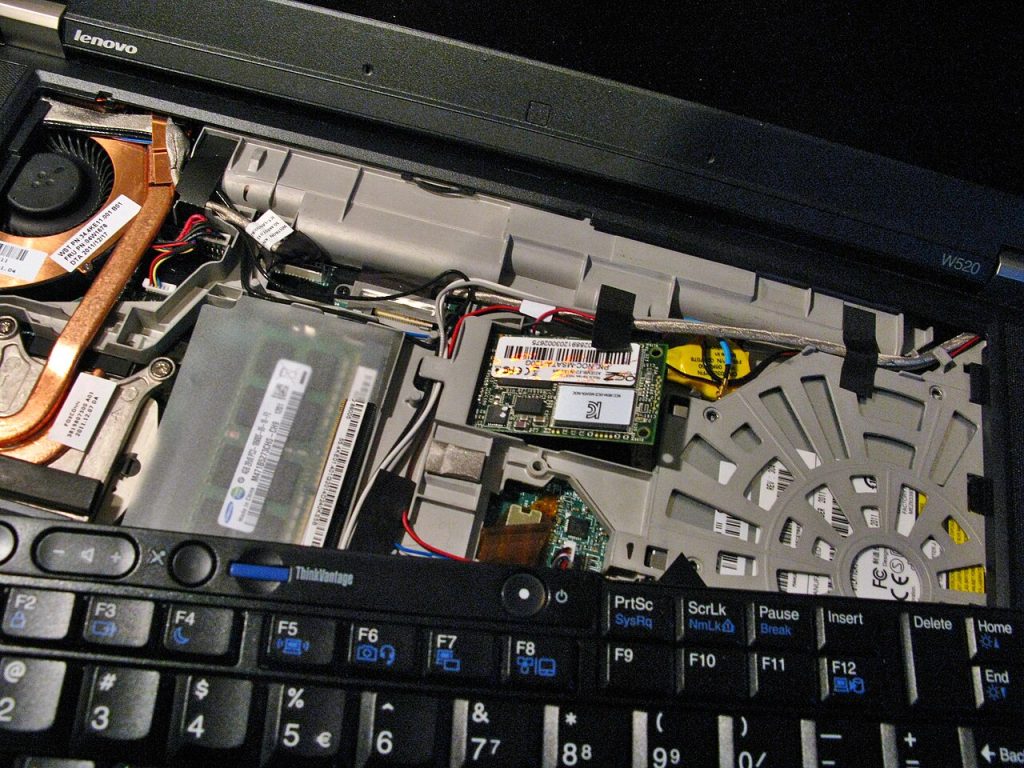

You switch on your Lenovo laptop and, instead of Windows, you get a black screen with a message such as “No bootable device” or “Boot device not found”. Your files may seem to have vanished, but the message only means the laptop could not find anything to start from. That can be caused by something as simple as a USB stick left in a port, a changed BIOS setting, damaged Windows startup files or a failing drive. Here is how to narrow it down without putting your data at risk.
What the message looks like
The wording varies between models:
- “No bootable device”
- “Boot device not found”
- “Default Boot Device Missing or Boot Failed”
- “Error 1962: No operating system found” on some ThinkPads
- “Error 2100: Detection error on HDD0” on some ThinkPads, which points to the drive itself
Make a note of the exact wording, or take a photo of the screen. It helps if you end up needing a repair.
Checks to do first
- Remove everything that is plugged in. Take out USB sticks, external drives and memory cards, and disconnect any dock. The laptop may be trying to start from one of them.
- Do a full power off. Hold the power button until the laptop switches off, unplug the charger, wait a minute, then plug it back in and switch on.
- Think about what changed. A knock or drop, a spill, a Windows update that was interrupted, or a recent BIOS update or reset are all useful clues.
See whether the laptop can find its drive
This is the most useful test, because it tells you which kind of problem you have. You only need to look at this stage, not change anything.
- Open the boot menu. Switch on and tap F12 straight away (Fn + F12 on some models). See whether your internal drive is listed.
- Or open the BIOS. Tap F1 on a ThinkPad, or F2 or Fn + F2 on an IdeaPad, Yoga or Legion. Look for your drive on the information or main page.
- Try the Novo button if the keys do not work. Many IdeaPad, Yoga and Legion models have a small button or pinhole on the side. With the laptop off, press it to open a menu that includes BIOS Setup and Boot Menu.
Many recent ThinkPads also include Lenovo Diagnostics, which you can usually reach by pressing Enter at the startup screen and then choosing it from the menu. Use it to test the drive if it is available.
If the drive is listed
The drive is being detected, so a setting or Windows itself is the more likely cause.
- Check the boot order. In the BIOS startup or boot section, Windows Boot Manager should be at or near the top of the list.
- Check the boot mode. Windows 11 needs UEFI. If the laptop has been switched to legacy mode, it will not find a Windows installation set up for UEFI.
- Try the BIOS defaults. If settings have been changed and you are not sure which, F9 loads the defaults and F10 saves and exits on most Lenovo models.
- Try Startup Repair. If Windows recovery does not appear by itself, create a Windows installation USB on another computer, start from it, then choose Repair your computer, Troubleshoot and Startup Repair.
Changing BIOS settings can trigger a BitLocker prompt on the next start, so have your key to hand. Our guide to the BitLocker recovery key screen explains where to find it.
If the drive is not listed
When the BIOS cannot see the drive, Windows settings are not the problem. The drive has failed, its connection has come loose or been damaged, or there is a fault on the motherboard. There is little more you can safely do at home.
Protect your files first
If your files matter and you have no recent backup, how you treat the laptop now can make a real difference.
- Do not reset or reinstall Windows. Options such as Reset this PC, or a clean install, can erase what is still on the drive.
- Do not keep restarting a failing drive. If you can hear clicking or grinding from an older hard drive, switch off and leave it off. Each attempt may do further damage.
- Keep your BitLocker key. If the drive is encrypted, the data cannot be read without it, even by a repair workshop.
Signs it needs a repair
- The drive is missing from the BIOS or boot menu.
- The drive appears on some starts but not others.
- A diagnostic test reports a drive failure.
- Startup Repair cannot fix the problem, or the error keeps returning.
- The error started after a drop or a spill.
What the repair involves
We test the drive on its own, which shows whether the fault is in the drive or in the laptop. If the connection has worked loose, we reseat it and check it is stable. If the drive is failing, we talk to you about your files before doing anything else, and our data recovery service can help if you need them back.
A failed drive is then replaced through an SSD upgrade, and Windows can be reinstalled or repaired as part of our software repair service. On some budget models, storage is soldered to the board rather than fitted as a separate drive, and that changes the options. If a known good drive is not detected either, we look at the slot and the motherboard.
Book a Lenovo repair
Bring your laptop to our London SE1 workshop (Monday to Saturday, 9am to 6pm), or we can arrange a courier collection from anywhere in the UK. Tell us the model and the exact error message on the screen, and we agree the price with you before any work starts.
Call 020 7394 2525, email info@creativeit.tv, or book a repair online.
Data recovery for every Lenovo
Laptop dead, SSD not detected, files deleted or Windows reset? We recover documents, photos and email from every ThinkPad, ThinkBook, IdeaPad, Yoga, Legion and LOQ at our London SE1 lab, even when the laptop itself can’t be repaired.
- Dead or liquid-damaged laptops
- SSDs and hard drives not detected
- Deleted files and reset laptops
- BitLocker, with your recovery key
Free consultation. No data, no recovery fee.
Get your Lenovo fixed
Book online and you get a job number by email straight away. Bring the laptop to our London SE1 workshop, or we arrange a courier collection from anywhere in the UK.